
User Guide
New to Glassy? Start here. This guide explains how to make canes and murrine, arrange a roll-up, and save your designs.
Getting Started
- Open CaneLab or MurrineLab.
- Make a pattern.
- Press Save.
- Open the Roll-Up Composer.
- Arrange your saved designs on the pickup plate.
- Press 3D Preview to see the result on a glass form.
Finding your way
The top menu has CaneLab, MurrineLab and Roll-Up, then User Guide and Library. Click the Glassy logo to go back to the home page. On a phone, use the menu button at the top right. Community is marked Coming Soon.
Where are my designs saved?
Glassy is free to use. Your designs are saved in this browser on this device.
CaneLab
CaneLab lets you build a cane using shapes, layers, and colors. You can change the pattern and see how it looks as a cane.
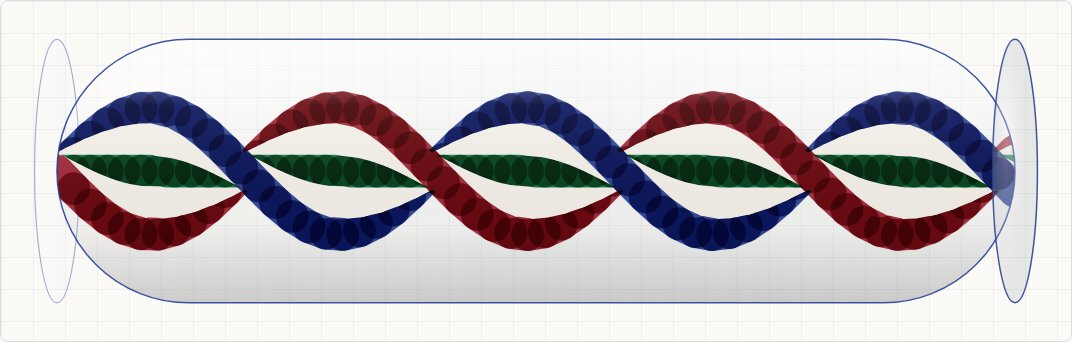
Make a cane
CaneLab opens with an empty cross-section. Press Add Element to add your first piece, or open a sample from the Samples section of the right panel. Reset clears the cross-section and asks first if there are more than five pieces. It never touches your saved designs.
Add shapes
Every piece in CaneLab is a circle of glass. Drag a piece to move it. Click it to select it, then drag the dot on its edge or use the Size slider to resize it. Duplicate (Ctrl+D) copies it and Delete removes it.
A new piece from Add Element or Duplicate is placed in the clearest free area of the cross-section, inside the edge, and is selected right away. Pieces already there never move. In a crowded design it goes where it overlaps the least.
Add colors
Select a piece and pick a color in the right panel, then choose Opaque, Transparent or Clear. With nothing selected, the Glass body panel sets the outer glass of the cane.
Add layers
- Select a piece and press Overlay. A layer of glass is added around it.
- Drag the filled dot to change the outer edge of the layer.
- Drag the hollow dot outward to leave a band of clear glass between the core and the layer.
- Click the layer itself to change only its color. Back to core returns to the piece.
With nothing selected, + Body overlay adds a layer to the outer glass. It grows inward, so the cane stays the same size.
Make a ring of color
Select a piece and press Surround Color (the solid ring icon). One continuous ring of color, 2 mm thick, is added around it. The ring is a separate piece: if you move the inner piece, the ring stays where it is.
Make a ring of canes
Select a piece and press Surround Canes (the dots-on-a-circle icon). Eight separate copies of the piece are placed around it. Change Count with − and +, drag the ring dot to spread them out, or resize one copy to resize them all. Select the layer of one copy to see Remove from All.
A ring of color is one continuous band of glass. A ring of canes is a circle of separate small canes with gaps between them.
With nothing selected, the Advanced section also has Create Ring of Canes, Create Ring of Color, Create Line, Radial Duplicate and Veiled cane.
Twist the cane
Switch to the Side, Internal or 3D view and choose None, Slight, Medium or Heavy, or use the slider. The whole inside of the cane turns, so pieces away from the center become spirals.
View the cane
- Build: the cross-section you edit. Use − and + to zoom; click the percentage to go back to 90%.
- Side: the cane from the side.
- Internal: the pattern inside the cane.
- 3D: a cane you can turn with the mouse.
Save a cane
Type a name at the top left and press Save. The cane appears in your Library and in the Roll-Up Composer. Export downloads pictures of the cane as PNG or SVG.
Body overlays show in the Build view only, and Undo doesn't cover them yet.
MurrineLab
MurrineLab lets you build a pattern from shapes and colors, one part at a time.
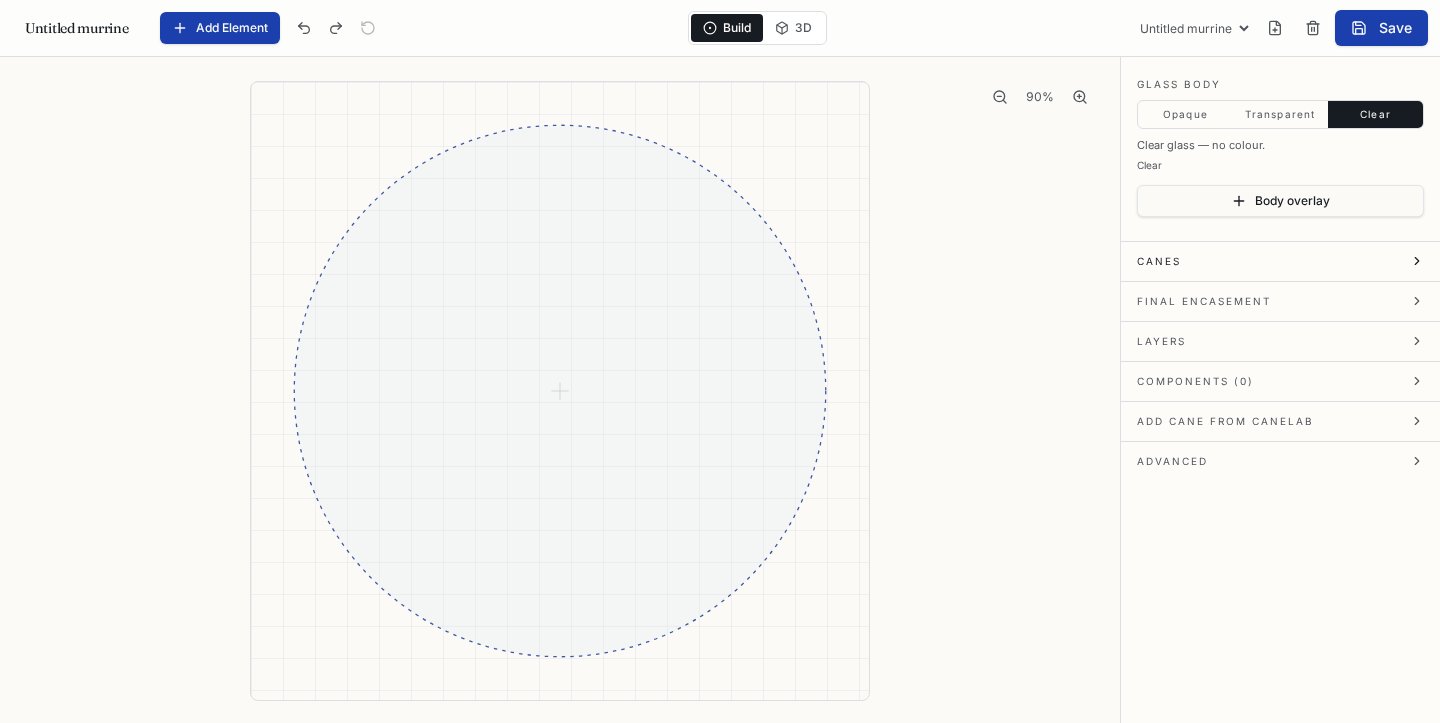
Start a new murrine
MurrineLab opens your current murrine; the murrine you are working on is kept in this browser as you work. Use New murrine next to the project menu at the top right to start another. A new murrine starts with a round body of clear glass, and everything you add stays inside it.
Add shapes
Press Add Element. Select it to change its Size and Shape. Drag to move it; it stops when its edge touches the glass body and slides along it.
A new element from Add Element or Duplicate is placed in the clearest free area inside the glass body and is selected right away. Elements already there never move.
Add colors
Select an element and pick a color, then Opaque, Transparent or Clear. With nothing selected, the Glass body panel sets the outer glass.
Work with layers
Overlay adds layers around an element, just like in CaneLab. Click a layer to change only that layer; Back to core returns to the element. + Body overlay adds an inward layer to the glass body. Final encasement and Layers hold exact values.
Repeat elements
- Surround Canes makes a ring of canes from the selected element, sized so each one fits inside the body. Change a color on one copy and all copies change. Whole Surround selects the group again.
- Surround Color adds a separate continuous ring of color.
- Make component turns a selection into a reusable part. Copies can stay linked (edit one, all change) or be detached.
- + Cane, + Veiled Cane and Create Ring of Color are in the Canes section. Add cane from CaneLab places one of your saved canes inside the murrine.
Check the pattern
The 3D tab shows a thin slice of the murrine that you can turn and zoom. Undo (Ctrl+Z) counts each drag as one step.
Save and use it in a roll-up
Press Save. The murrine appears in your Library and in the Murrines list of the Roll-Up Composer, and MurrineLab then opens a fresh, empty murrine. A murrine opened from the Library is updated in place, not copied.
Colors and Transparency
Choose a color and decide how the glass should appear in the simulation.
Glass that blocks the view of what is behind it, like white or black.
Colored glass that lets light and other parts of the pattern show through. Choose Regular or Light.
Colorless transparent glass. Shown as an outline or a faint tint.
Clear glass is real glass in your design, not empty space. On the 3D vessel it looks very faint, so clear areas can look like gaps. The colors on screen are a guide; real glass will look different.
Roll-Up Composer
The Roll-Up Composer is where you arrange your saved canes and murrine into a larger pattern.
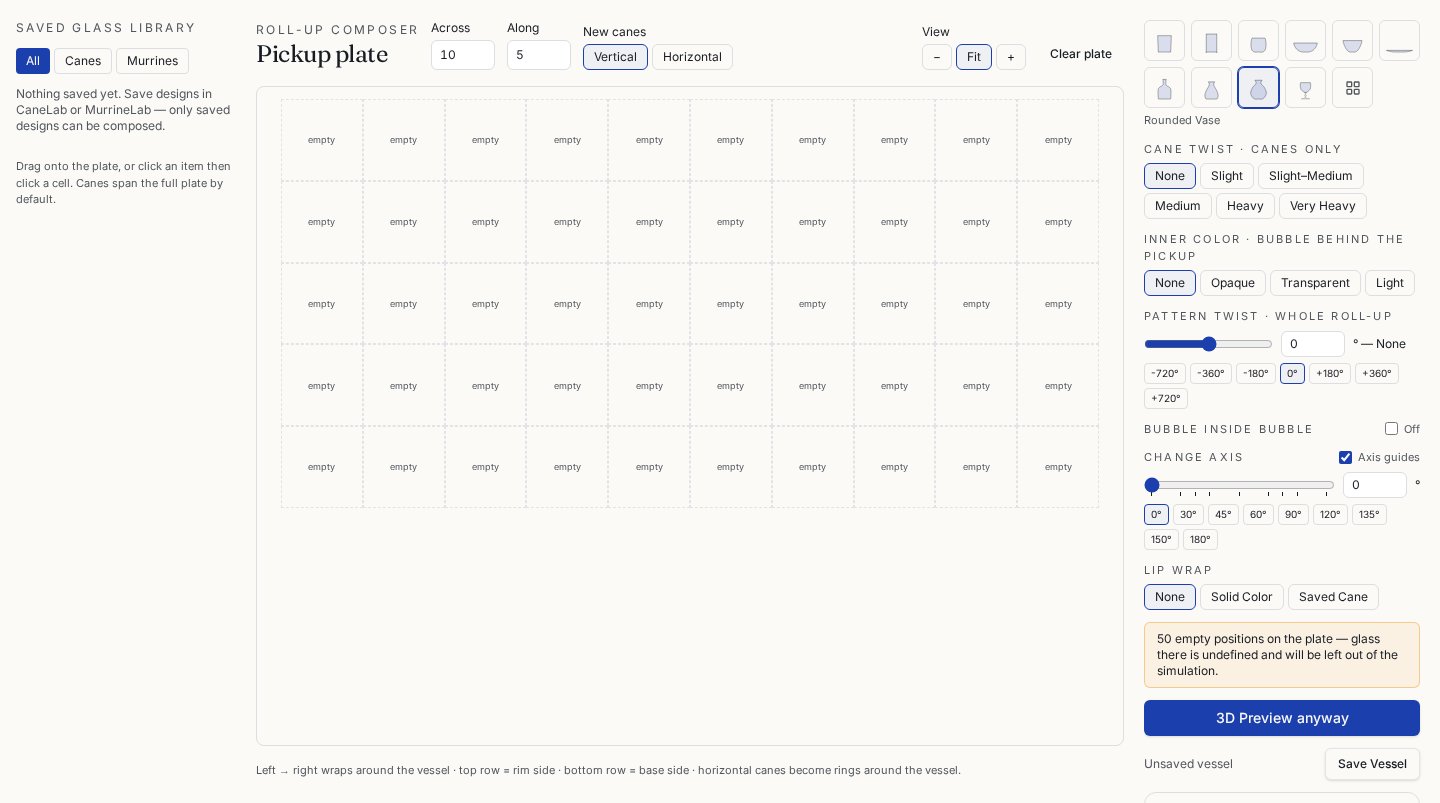
Add a saved design
The Saved Glass Library on the left lists your saved canes and murrines. Filter with All, Canes or Murrines. Drag a design onto the plate, or click it and then click a cell. Only saved designs show up here.
Arrange the pattern
- Across (around the vessel) and Along (rim to base) set the grid, from 1 to 30. New plates start at 10 × 5.
- Drag a cane's ends to cut it shorter, or drag its middle to slide it. A shorter cane shows a shorter piece of the same cane; the pattern isn't squeezed.
- Selected pieces can be duplicated or deleted. Clear plate empties the plate.
- View: −, Fit and + to zoom, or Ctrl/Cmd and the mouse wheel.
Change the direction
Before placing a cane, choose Vertical or Horizontal under New canes. Horizontal canes become rings around the vessel. On the plate, left to right goes around the vessel, the top row is the rim and the bottom row is the base.
Twist the pattern
- Cane Twist · canes only twists each cane on its own (None to Very Heavy). Murrine don't change.
- Pattern Twist · whole roll-up twists the whole pattern around the vessel, from −720° to +720°.
Square or Radial pickup
Square Pickup is the grid plate described above. Radial Pickup arranges canes and murrine on a round plate; its size is set by Radius (cells).
See the pattern on a vessel
Pick a form from the shape grid at the top right, or press More shapes to open the Shape Library with all forms, sorted by category. Newer forms include Barrel Vase, Carafe Tall, Cone Vase, Cylinder with Flared Lip, Collar Bottle, Wide Shoulder Bottle, Spindle Vase, Step Neck Bottle, Wide Cone Bowl, Inverted Cone Bowl, Low Cylinder Bowl, Angular Shoulder Vase, Sloped Shoulder Bottle, Wide Rim Bowl and Tall Cone Bottle. Then then press 3D Preview. If some cells are empty, a warning tells you how many and the button reads 3D Preview anyway. Empty cells are left out.
Change Axis
Change Axis (0°–180°) tilts the direction the pattern was gathered on. The pattern then comes together around a new point, for example into a flower shape at the base. Turn on Axis guides to see the axis.
Other controls
- Inner Color: a layer of color behind the pattern (Opaque, Transparent or Light).
- Bubble Inside Bubble: Reticello uses one pattern twisted in opposite directions (Reticello Twist, Swap Directions). Custom uses two separate patterns (Outer/Inner Pattern Twist, Inner Rotation). Air Traps adds air where the lines cross.
- Lip Wrap: None, a Solid Color or a Saved Cane around the rim, with a thickness slider.
Understanding the 3D View
The 3D view shows how your pattern may look on a glass vessel.
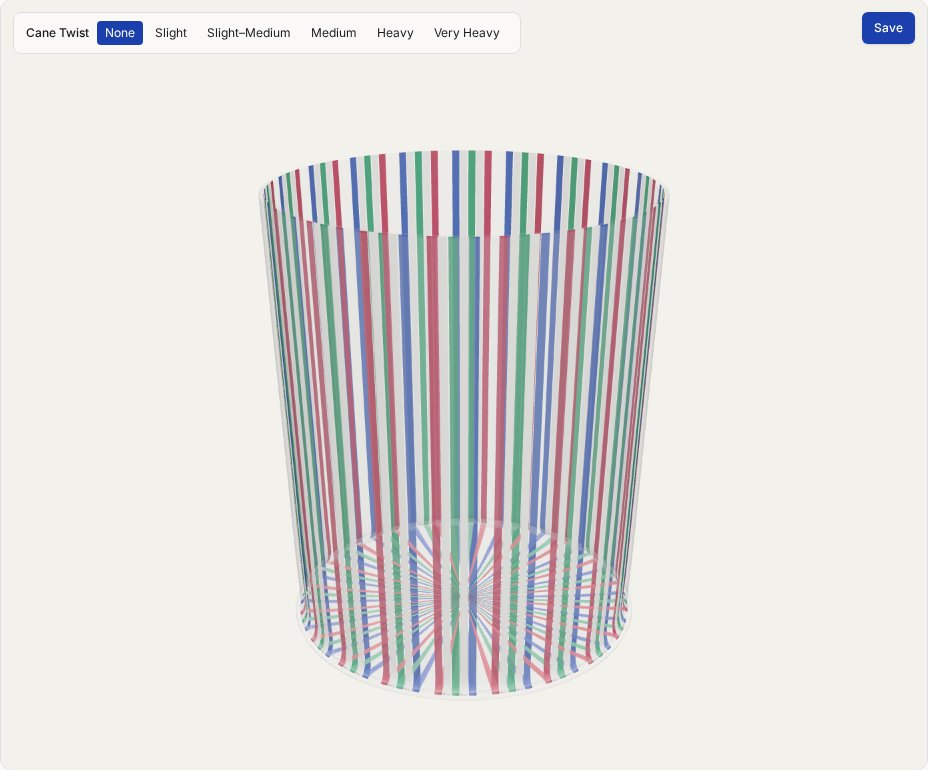
- The flat plate is rolled into a cylinder and blown into the form you picked.
- Wide parts of the form stretch the pattern; narrow parts squeeze it.
- Twist and Change Axis change how the lines run across the surface.
- At the base, the pattern comes together toward the center.
- Drag to turn the vessel and scroll to zoom.
You can also try a single design without the Composer: in the Library, use Simulate on Object on a cane or a murrine.
This is a visual reference, not a prediction. Heat, timing and the glass you use all change the real result. Round murrine aren't fused in the simulation, so small gaps can show where they touch.
Hotshop Sheets (PDF)
A Hotshop sheet is a printable A4 PDF to take to the studio. It is made in your browser and downloaded to your device; nothing is uploaded.
- Save Cane for the Hotshop in CaneLab and Save Murrine for the Hotshop in MurrineLab: one page with the exact cross-section, one 3D image and the design's name and settings (colors, glass types, layers, twist, and for murrine the reduction and slice thickness).
- Save Vessel for the Hotshop in the Roll-Up Composer: the vessel from four sides (front, right, back, left) with its settings, the pickup plate with a letter on every piece and a legend, then one sheet per distinct cane or murrine, using the same letters. Bubble Inside Bubble gets one plate per layer. Pages are numbered.
The four views show the whole way round the vessel; the plate and letters show which design goes where. A vessel sheet can take a few minutes; a progress message shows each stage, and if something fails you get an error instead of an incomplete PDF.
Hotshop sheets are visual planning references, not validated manufacturing instructions. They don't include plate size in mm, cane length, temperatures or glass compatibility.
Saving Your Designs
- Press Save in CaneLab or MurrineLab. Saving again updates the same design. CaneLab doesn't save automatically. MurrineLab keeps your current murrine and the Roll-Up Composer keeps your current plate in this browser as you work, but only Save adds a design to your Library.
- In the Composer, Save Vessel saves the whole vessel and Save As makes a new copy. A vessel keeps its own copies of the canes and murrine it uses, so later edits to those designs don't change it.
- Your Library lists your canes, murrines and vessels. Use Open or Edit to keep working, plus Rename, Duplicate, Simulate on Object and delete (it always asks first).
- Designs are saved in this browser on this device only. They don't move to other devices or browsers. Clearing your browser data, or using a private window, can remove them.
Common Questions
Where are my designs saved?
Your designs are saved in this browser on this device only. Clearing your browser data can delete them.
Can I edit a saved design?
Yes. Open it from the Library with Open or Edit, make your changes and press Save.
Can I use my cane in a roll-up?
Yes. Save it first, then find it in the Saved Glass Library on the left of the Roll-Up Composer.
Will the colors look exactly the same in real glass?
No. The simulation is a visual reference. Real colors depend on the glass and how you work it.
Can I share my designs with other artists?
Not yet. Sharing is planned for the Community, which is coming soon. For now you can Export pictures of a cane, or download a Hotshop PDF of a cane, murrine or vessel.
My new element appeared away from the center.
That's on purpose. New elements go to the clearest free area so they aren't hidden under existing ones. Drag it wherever you like.
I can't drag a piece past the edge.
That's on purpose. The glass body is the edge of the design.
There are gaps on my vessel.
Check for empty cells; the Composer warns about them. Clear glass also looks very faint in 3D.
I made a mistake.
Use Undo (Ctrl+Z). Reset clears only the current design, never your Library.